Claude Code vs Cursor Explained Features and Benefits
Ever felt overwhelmed by a big project? You’re not alone in looking for a digital helper to make your work easier. Finding the right tool can seem hard, but it’s essential for your growth.
This coding comparison looks at the world of AI in coding. We’ll see how Claude Code and Cursor help with different coding needs. Knowing what each offers can help you pick the best for your project.
Compare Claude Code vs Cursor to explore features, AI coding tools, productivity benefits, pricing, and which assistant is best for developers.
Key Takeaways
- Discover the primary differences between top-tier AI development assistants.
- Learn how to match specific software features to your unique daily workflow.
- Evaluate the strengths of each tool to boost your overall productivity.
- Gain a clear roadmap for selecting the best assistant for your technical stack.
- Understand the core value proposition of modern AI-driven programming environments.
The Evolution of AI-Assisted Development
The world of software engineering is changing fast thanks to machine learning. Now, smart systems are taking over tasks that used to be done by humans. This is a big change in the tech industry.
The Shift in Modern Software Engineering
Before, developers used simple tools that only suggested basic things. Now, these development tools are much smarter. They can understand complex computer science ideas and offer better suggestions.
This change lets you work on bigger ideas instead of just writing code. You’re now working with AI to create complex systems. It’s a big step forward.
Why Developers are Turning to Specialized AI Tools
Today’s codebases are huge and hard to manage. The tech industry wants things done faster. So, you need tools that can handle big projects.
Using these tools is now a must to stay ahead. They help you understand computer science better and save time. With them, you can tackle big projects with ease.
Claude Code vs Cursor: Core Architecture and Philosophy
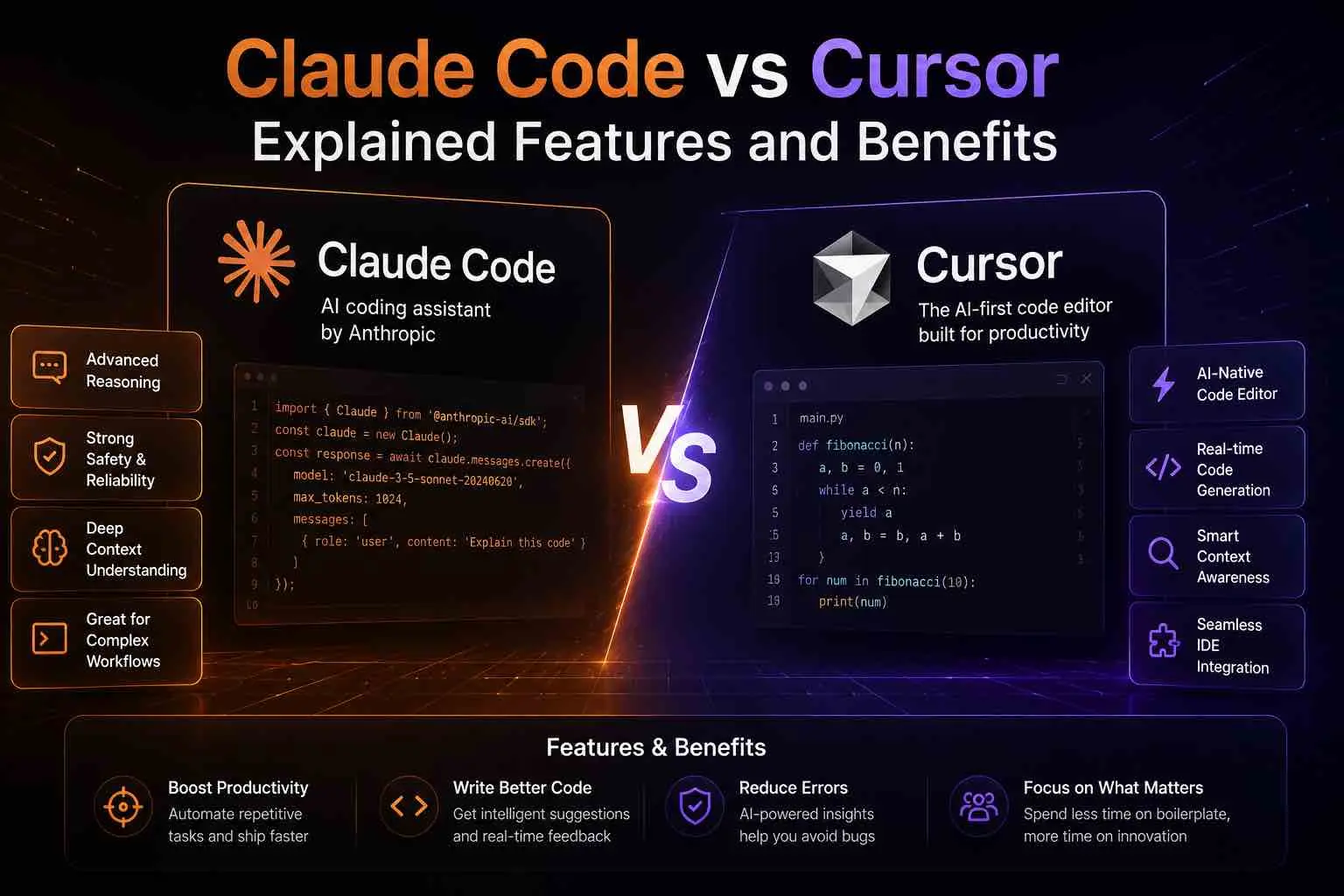
In the world of AI-assisted development, the debate between claude code vs cursor often comes up. It’s about whether you like a visual interface or a command-line approach. These tools show two different ways developers work with AI during software development.
Choosing the right tool depends on what you need most: speed, visibility, and control. A coding comparison shows that both aim to make you more productive. But, their architectures fit different engineering workflows.
Understanding the Cursor IDE Approach
Cursor is a fork of VS Code, making it a full-featured Integrated Development Environment. It embeds AI directly into the editor. This gives you a seamless experience where the model knows your project structure in real-time.
This method is great if you like visual feedback. You see AI suggestions right in your code files. You can navigate suggestions, accept changes with a click, and keep an eye on every change.
The Command-Line Interface Focus of Claude Code
Claude Code is a terminal-based agent for developers who prefer the command line. It treats your terminal as the main workspace. You can do complex tasks using natural language commands without leaving your shell.
This terminal-first philosophy is perfect for developers who work on infrastructure, scripts, or backend services. It keeps you focused on the command line. This can make repetitive tasks much faster.
Key Differences in Model Interaction and Context Management
Managing context is key for large-scale refactoring. Cursor uses an advanced indexing system to track your codebase. This ensures the AI understands your project’s dependencies and structure well.
“The most effective AI tools are those that disappear into the background, allowing the developer to focus on the architecture rather than the mechanics of the code.”
Claude Code, however, uses a more direct, agentic interaction model. It scans your local environment on demand. This is faster for specific tasks but needs more manual guidance for big, multi-file refactors.
| Feature | Cursor IDE | Claude Code |
|---|---|---|
| Primary Interface | Visual Editor (GUI) | Terminal (CLI) |
| Context Handling | Global Indexing | On-demand Scanning |
| Best For | Full-stack Development | Scripting & Automation |
| Learning Curve | Low (VS Code based) | Moderate (CLI proficiency) |
Deep Dive into Cursor Features
Cursor has become a top choice for developers looking for better workflows. It combines a familiar editor with cutting-edge artificial intelligence. This makes your daily tasks easier.
The Integrated Development Environment Experience
Cursor is easy to get used to, even if you’re used to VS Code. The ide features are intuitive and work well with AI.
The interface is clean and lets you focus on your code. It keeps a layout you’re used to, making the transition smooth.

Advanced Codebase Indexing and Retrieval
This tool indexes your whole project. It lets the AI understand your syntax differences and project patterns well.
When you ask about your code, it finds the right snippets. This makes suggestions smarter and saves time.
Real-time Autocomplete and Tab-to-Complete Functionality
Cursor’s autocomplete engine is more than just text prediction. It looks at your file and context for highly relevant code completions.
The tab-to-complete feature lets you accept suggestions quickly. It’s great for repetitive tasks or generating boilerplate code.
Managing Multi-file Contexts within the Editor
Cursor is great for big projects. It lets you pin files or folders to your AI context window.
This way, the AI knows your whole project when suggesting solutions. It helps keep your project consistent, even with syntax differences between modules.
| Feature Category | Cursor Capability | Developer Benefit |
|---|---|---|
| Code Indexing | Full Project Scan | Faster Retrieval |
| Autocomplete | Predictive AI | Reduced Typing |
| Context Management | Multi-file Pinning | Higher Accuracy |
| IDE Integration | VS Code Compatible | Easy Migration |
Exploring the Claude Code CLI Experience
Claude Code turns your terminal into a powerful tool for coding. It follows a terminal-first approach, blending old coding ways with new computer science ideas. You don’t have to jump between windows to handle your project tasks anymore.
Terminal-First Development Workflows
Using a terminal-centric workflow keeps you focused on your code. It cuts down on switching between tasks, a big problem in the tech industry. With everything in one place, you work more efficiently.

Executing Complex Tasks via Natural Language Commands
You can tackle complex tasks with simple language commands. Forget about remembering hard syntax. Just tell the AI what you need, and it does the rest.
Security and Permission Controls in Claude Code
Security is key when using AI in your coding space. Claude Code has strong permission controls to keep you in control. You can give access to certain areas while keeping others safe.
Handling Local File System Operations Safely
The tool has strict rules for handling files. It checks every change before it happens. This keeps your code safe and lets you use automated development without worry.
Comparative Analysis of Workflow Integration
Your development process needs smooth integration. Choosing between these tools is key. It’s important to see how each fits your project structure for high productivity.
You should think about how these tools fit into your current setup. Also, look at how they handle syntax differences to keep your workflow smooth.
Programming Languages and Framework Support
Both tools support many programming languages. But, they handle them differently. Cursor works well with complex frameworks like React and Python backends. It knows your project structure to offer smart suggestions.
Claude Code is great for working with many languages at once. It’s perfect for quick changes across files or languages from your terminal. Flexibility is its main strength, making it easy to work with different tech stacks.

Latency and Performance in Real-world Projects
Latency can make coding slow or frustrating. Cursor uses local indexing for fast autocomplete and search. This local-first approach cuts down waiting time.
Claude Code focuses on quick, direct interaction through the command line. It uses cloud processing but has a simple interface. It’s great for tasks where speed matters most.
Customization and Plugin Ecosystems
Customization lets you adjust tools to fit your coding style. Cursor uses VS Code plugins to add AI to your workflow. This makes it easy to adapt to AI assistance.
Claude Code is customizable through command-line settings. You can create complex workflows and integrate them into your pipelines. Its modular design suits developers who like a terminal-focused environment.
Comparing User Interface vs Terminal Efficiency
Choosing between a GUI and a terminal workflow depends on your preference. Cursor offers a visual interface for managing large projects. It highlights syntax differences in your codebase.
Claude Code is best for terminal users. It keeps you focused on coding without switching windows. Knowing these fundamental differences helps pick the right tool for your work.
Choosing the Right Tool for Your Software Engineering Stack
Modern software engineering needs tools that fit your workflow and tech stack. The right tool isn’t just about features. It’s how well it fits into your daily work. Knowing what each platform does best helps you work better and less.
When to Prioritize Cursor for Full-Stack Development
Cursor is great for complex, multi-layered apps. It works deep in the IDE, giving context-aware suggestions across files and folders. This is key for big codebases where keeping track of dependencies is hard.
Cursor also excels in managing project structure visually. It’s perfect for developers who like graphical feedback and integrated debugging. It’s stable for projects with many programming languages.
“The best tool is the one that disappears into your workflow, allowing you to focus entirely on the logic rather than the mechanics of the environment.”
When to Leverage Claude Code for Scripting and Automation
Claude Code is for terminal lovers who value speed. It’s great for quick scripting, automation, or file work. It’s light, letting you work directly with your system in natural language.
DevOps engineers and those doing repetitive terminal tasks will love it. It keeps you in the terminal, saving time and focus. It’s perfect for complex tasks without leaving the command line.
Evaluating Your Team’s Technical Requirements
Choosing the right tool depends on your team’s needs. Think about your projects’ complexity and your team’s programming languages. Teams doing quick prototyping might prefer Claude Code. Teams on big projects might like Cursor’s environment.
| Feature | Cursor | Claude Code |
|---|---|---|
| Primary Interface | Integrated IDE | Terminal/CLI |
| Best For | Full-Stack Apps | Scripting/Automation |
| Context Depth | High (Project-wide) | High (Task-specific) |
The claude code vs cursor debate is about your goals. Look at your bottlenecks and pick the tool that solves them. The right AI assistant boosts your team’s efficiency in software engineering.
Conclusion
Choosing the right technology is key in modern software engineering. You now know how Claude Code and Cursor meet different needs in your work.
These tools help you work more efficiently. You might like the full IDE for its deep integration or the command-line for its quick speed.
Your choice depends on what you value more. Do you need a wide range of features or fast automation? Both are at the forefront of programming support today.
Try these tools on your current projects to see the difference. Your coding style will help you decide which one suits you best. Start your trial today and see how these innovations can change your software-building approach.
FAQ
When comparing Claude Code vs Cursor, which tool is better for a beginner in software engineering?
For beginners, Cursor is easier to use. It’s built on VS Code and has a familiar interface. You can see your files and code changes easily. Claude Code, on the other hand, is a CLI tool that’s better for those who are comfortable with the terminal.
How do these development tools handle different programming languages and syntax differences?
Both tools are very versatile. Cursor indexes your code to understand different syntaxes across your project. Claude Code, powered by Anthropic’s Claude 3.7 Sonnet, knows hundreds of programming languages. It can write code and debug directly from your terminal.
Can I use Claude Code and Cursor together in my tech industry workflow?
Yes, you can use both tools together. Use Cursor for its advanced features like real-time autocomplete. Use Claude Code for tasks like git operations and bulk refactoring through natural language commands.
What are the primary benefits of the terminal-first approach in Claude Code?
Claude Code’s terminal-first approach is fast and automated. You can ask the AI to “fix the failing tests” or “summarize the last five commits” without leaving the command line. This makes your work faster and more efficient.
Does Cursor provide better codebase indexing than a standard coding comparison tool?
Cursor is known for its codebase indexing. It creates a detailed index of your files, making its suggestions more relevant. While Claude Code is great at searching files, Cursor’s index is better for large, complex repositories.
Are there specific security and permission controls I should be aware of?
Both tools prioritize safety. Claude Code requires you to approve its actions, like executing shell commands. Cursor operates within standard IDE security, ensuring your data is secure.
Which tool is more efficient for high-level scripting and automation?
Claude Code is best for scripting and automation. It can automate tasks faster than a traditional IDE. But for complex front-end components, Cursor’s ide features are better.